





How to Add Custom Fonts in Elementor WordPress (Complete Guide)
Custom font in Elementor WordPress: When you’re using Elementor, you already control layout, spacing, colors, and responsiveness. But custom fonts? That’s where real brand authority begins.
This guide will walk you through:
• Adding custom fonts using Elementor Pro
• Adding custom fonts without Elementor Pro
• Hosting fonts locally for performance & SEO
• Adding fonts via CSS
• Performance best practices
• Legal and licensing considerations
• Smart link-building strategy for your blog
We’re going deep.
Why Custom Fonts Matter for Your Website
Typography directly impacts:
- Brand recognition
- Readability
- Time on site
- Bounce rate
- User trust
- Conversion optimization
Big brands invest heavily in fonts. Think about how recognizable the typography of companies like Apple or Netflix is. That’s not accidental. It’s brand psychology.
Google Fonts are great—but they’re common. Custom fonts make your brand distinct.
Method 1: Add Custom Fonts Using Elementor Pro (Easiest Way)
If you’re using Elementor Pro, this is extremely simple.
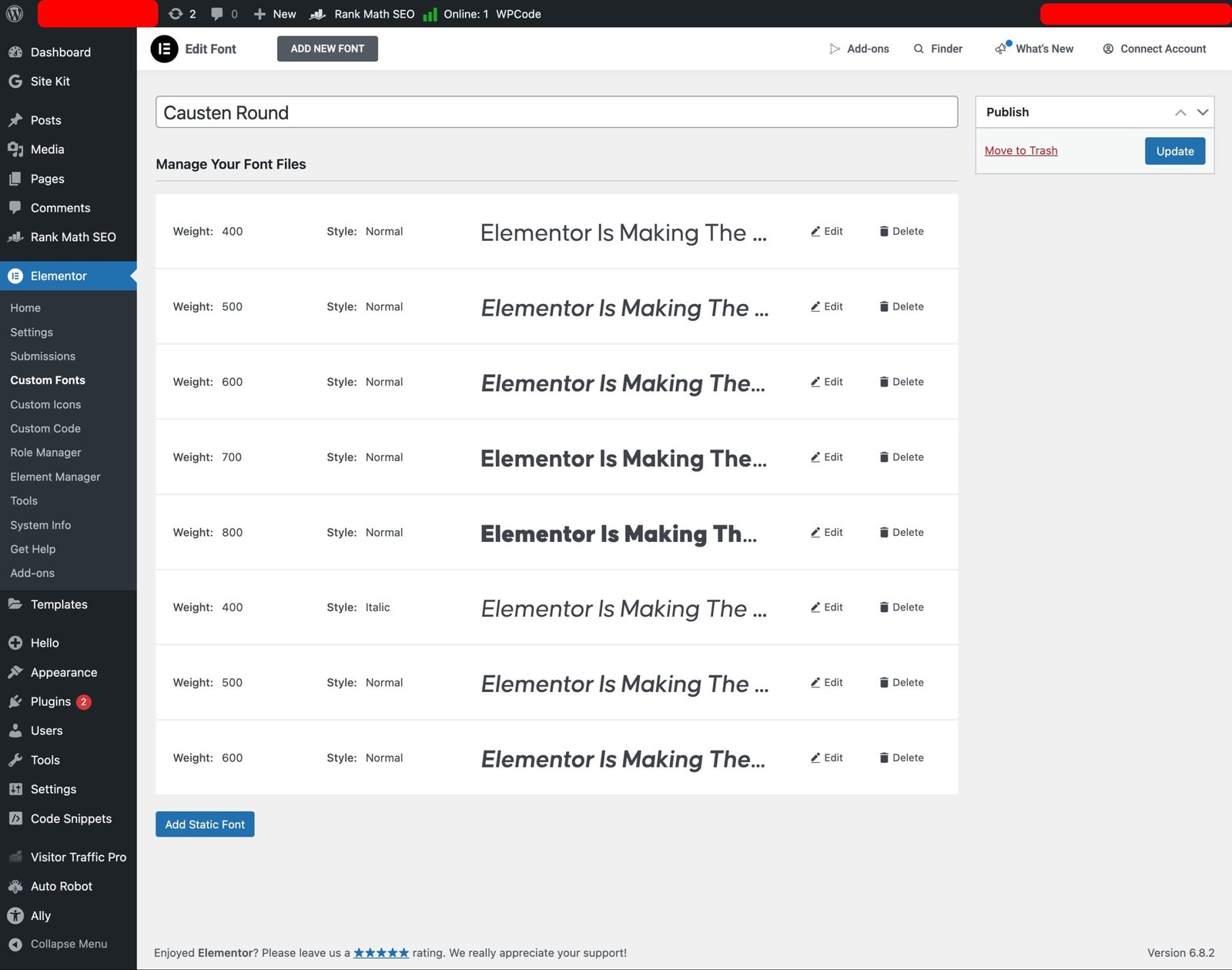
Step 1: Upload Your Font
- Go to WordPress Dashboard
- Navigate to: Elementor → Custom Fonts
- Click “Add New”
- Give your font a name
- Upload font files (WOFF, WOFF2 recommended)
Elementor supports:
- WOFF
- WOFF2
- TTF
- OTF
- SVG
For best performance, use WOFF2.
Step 2: Assign Font Weights
You can upload:
- Regular (400)
- Medium (500)
- Bold (700)
- Light (300)
Always upload multiple weights for flexibility in design.
Step 3: Use the Font in Elementor
Now go to:
Elementor Editor → Typography → Font Family → Select Your Custom Font
Done.
Clean. Native. No hacks.
Method 2: Add Custom Fonts Without Elementor Pro
No Pro? No problem. We engineer solutions.
Option A: Use a Plugin
Install a plugin like:
- “Custom Fonts” by Brainstorm Force
- “Use Any Font”
These allow font upload and CSS injection.
Steps:
- Install plugin
- Upload font
- Assign font to CSS selector
- Use in Elementor via custom CSS
Option B: Add Font Manually via @font-face (Professional Method)
This is cleaner and more developer-friendly.
Step 1: Upload Font Files
Upload your font files to:
wp-content/uploads/fonts/
You can use:
- FTP
- File Manager
- Media library (not ideal)
Step 2: Add CSS Code
Go to:
Appearance → Customize → Additional CSS
Add:
@font-face{ font-display:swap;
    font-family: 'MyCustomFont';
    src: url('https://yourdomain.com/wp-content/uploads/fonts/myfont.woff2') format('woff2'),
         url('https://yourdomain.com/wp-content/uploads/fonts/myfont.woff') format('woff');
    font-weight: normal;
    font-style: normal;
 }

body {
    font-family: 'MyCustomFont', sans-serif;
}
Replace URLs properly.
Now your font is active globally.
Method 3: Add Custom Fonts via Theme File (Advanced)
If you’re using a child theme:
- Open style.css
- Add @font-face code
- Enqueue properly in functions.php
Example in functions.php:
function enqueue_custom_fonts() {
    wp_enqueue_style('custom-fonts', get_stylesheet_directory_uri() . '/fonts/fonts.css');
}
add_action('wp_enqueue_scripts', 'enqueue_custom_fonts');
This is clean for scalable projects.
Best Font Formats for Performance
Always use:
- WOFF2 (primary)
- WOFF (fallback)
Avoid heavy TTF unless necessary.
Why?
WOFF2 is compressed and loads faster.
Site speed affects SEO ranking. Google confirmed Core Web Vitals impact search performance.
Hosting Fonts Locally vs Google Fonts
Google Fonts are easy—but:
- External request
- Privacy concerns (especially in EU)
- Slower if not optimized
Hosting locally:
- Improves performance
- Reduces DNS requests
- GDPR friendly
- Better control
If you care about technical SEO, local hosting wins.
Performance Optimization Tips
- Preload fonts
Add this inside header:
<link rel="preload" href="/wp-content/uploads/fonts/myfont.woff2" as="font" type="font/woff2" crossorigin>
- Use font-display: swap
@font-face{
  font-family: 'MyCustomFont';
  src: url('myfont.woff2') format('woff2');
  font-display: swap;
 }
This prevents layout shift.
- Limit font weights
Don’t upload 8 weights. Use 2–3 maximum.
Every font weight increases load size.
Common Problems & Fixes
Font Not Showing?
- Check URL path
- Clear cache
- Regenerate Elementor CSS
- Disable font optimization plugin temporarily
Font Flickering?
Add:
font-display: swap;
Font Not Working on Mobile?
Check responsive settings in Elementor Typography panel.
Font Licensing Warning
Not all fonts are free.
Always check:
- Commercial license
- Web usage license
- Redistribution rights
Never upload premium fonts without a valid license.
Legal issues are expensive.
SEO Impact of Custom Fonts
Fonts don’t directly improve SEO—but indirectly they do.
Better readability → longer session duration → lower bounce rate → improved engagement signals.
Google measures user behavior.
Readable typography increases user trust.
Trust increases conversion.
Conversion increases business.
Internal Linking Strategy (For Your Blog)
When publishing this article, link to:
• Your WordPress Speed Optimization Guide
• Your Elementor Design Tutorial
• Your Technical SEO Article
• Your Hosting Performance Guide
This builds topical authority.
Example internal anchor:
“If you’re optimizing performance, read our complete guide on WordPress speed optimization.”
External Link Building Strategy
To strengthen authority, link to:
• Elementor official documentation
• Google Web Fonts documentation
• Google PageSpeed Insights
• W3C CSS font documentation
Outbound links improve content trustworthiness.
Example anchor text:
“According to Elementor’s official documentation…”
Make sure links open in new tab.
Advanced Tip: Variable Fonts
Variable fonts combine multiple weights into one file.
Benefits:
- Smaller file size
- Flexible typography
- Modern performance
If you’re building high-end client sites, explore variable fonts.
Custom Font + Elementor Global Settings (Best Practice)
After uploading custom font:
- Go to Site Settings
- Set typography globally
- Assign headings and body fonts
Never manually assign fonts to each widget. That creates inconsistency.
Global settings = scalable development.
Security Considerations
Do not allow public file upload directory browsing.
Protect wp-content/uploads/fonts via .htaccess if needed.
Real-World Use Case
Imagine you’re building an eCommerce store.
Luxury brands often use elegant serif fonts for headings and clean sans-serif for body.
Example setup:
Headings → Custom Serif
Body → Optimized Sans-Serif
Typography hierarchy builds authority.
Final Thoughts
Custom fonts in Elementor are not just design choices. They are brand assets.
You now know:
• How to upload fonts using Elementor Pro
• How to add manually without Pro
• How to optimize performance
• How to structure internal and external links
• How to stay legally safe
When you combine clean typography, optimized hosting, technical SEO, and strategic internal linking—you build websites that convert.
The difference between amateur WordPress sites and professional agency builds often lies in these subtle optimizations.
Typography is invisible persuasion.
And persuasion is power.
If you implement this correctly, your Elementor websites will feel premium, faster, and more authoritative.
Now go upgrade your typography game.