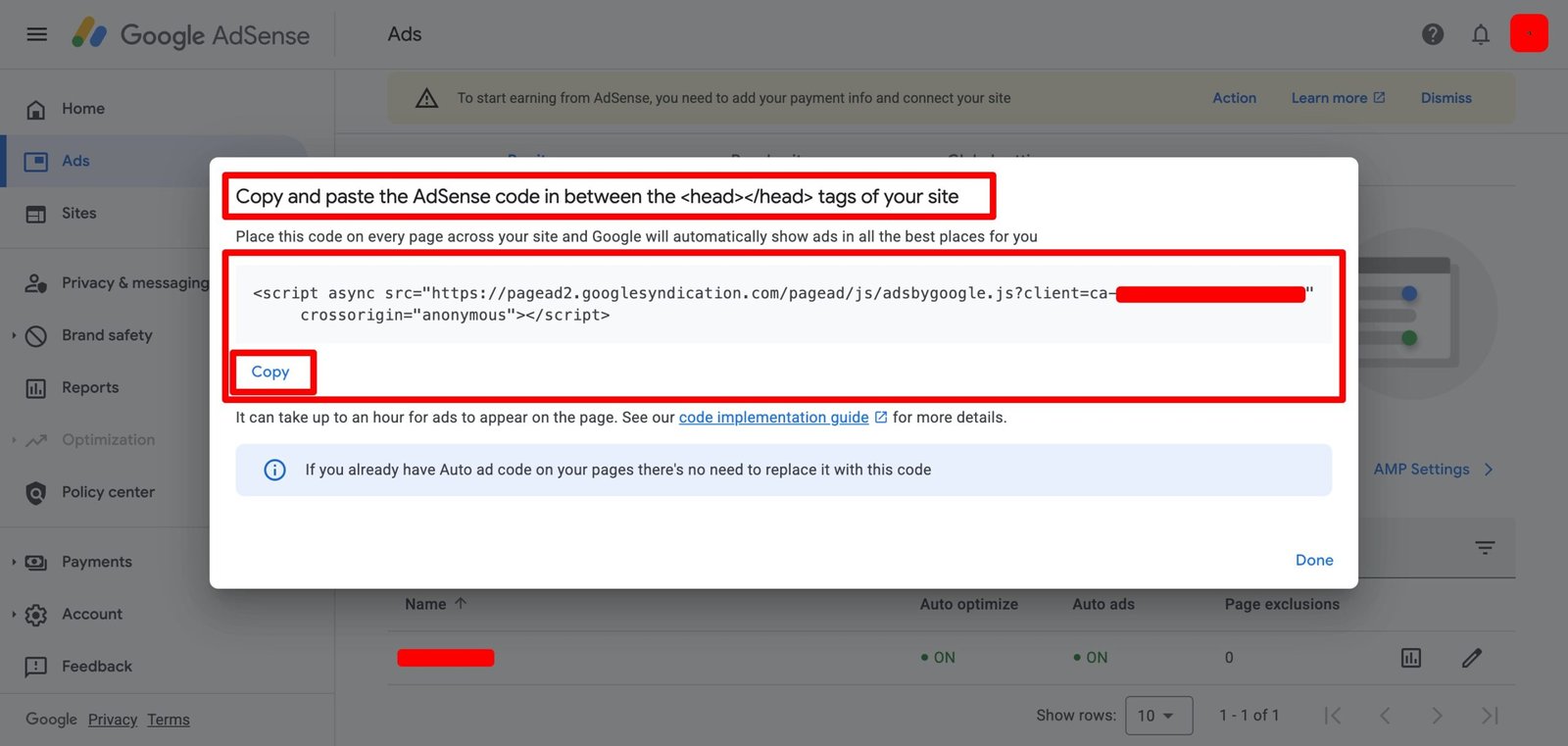





Copy and paste the AdSense code in between the <head></head> tags of your site
Place this code on every page across your site and Google will automatically show ads in all the best places for you
<script async src="https://pagead2.googlesyndication.com/pagead/js/adsbygoogle.js?client=ca-pub-XXXXXXXXXXXXXXXX"
     crossorigin="anonymous"></script>
It can take up to an hour for ads to appear on the page. See our code implementation guide for more details.
If you already have Auto ad code on your pages there’s no need to replace it with this code
Code implementation guide: Get and copy the AdSense code
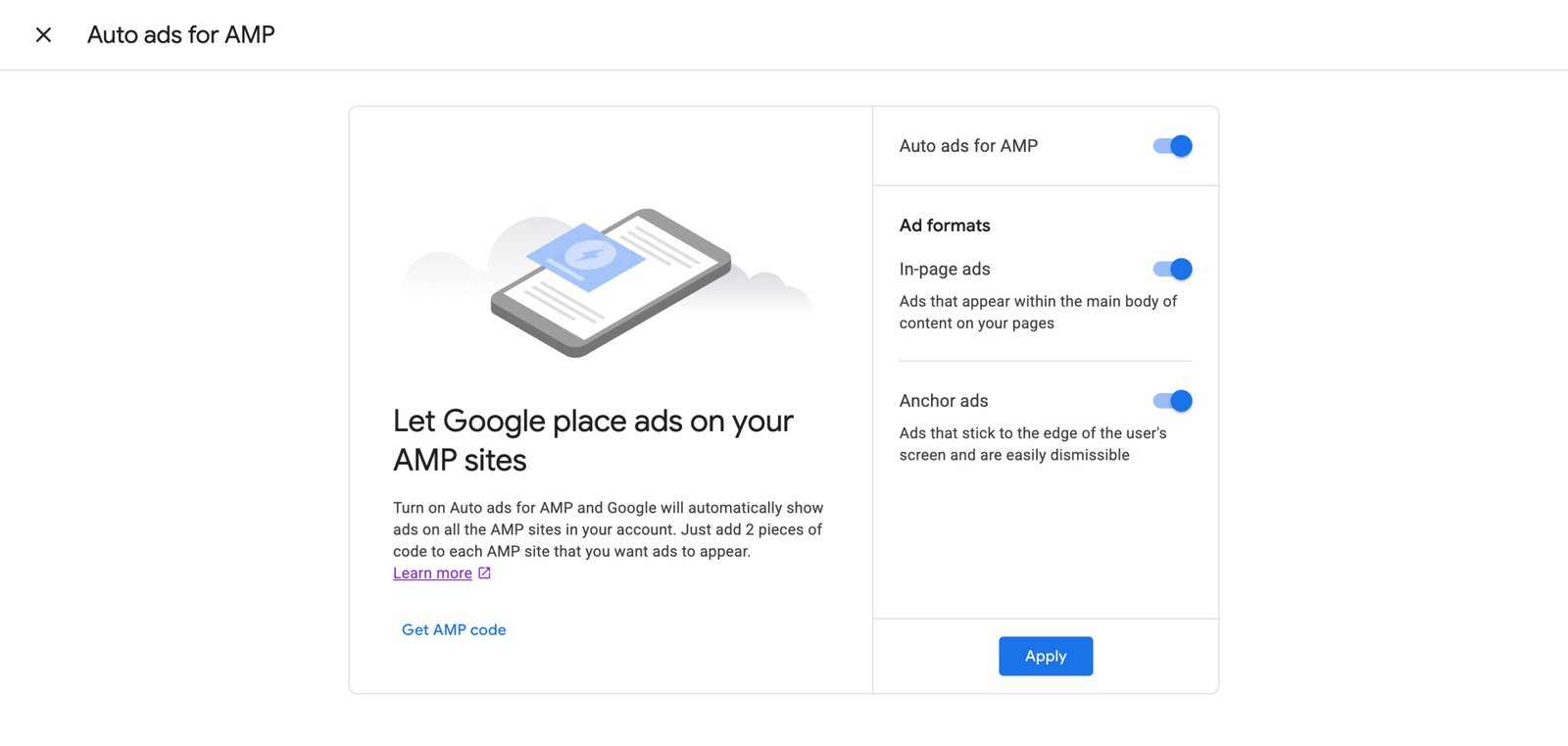
You get and copy the AdSense code from the Ads page in your AdSense account. How you generate the AdSense code will depend on whether you’re using Auto ads or ad units. Note that for Auto ads you only need the AdSense code, but for ad units you need the AdSense code plus the ad unit code.
How to get and copy the code for Auto ads
To generate the AdSense code for Auto ads you first need to set up Auto ads for your entire site. If you’ve already done this, you can get the AdSense code by following these steps:
- Sign in to your AdSense account.
- Click Ads.
- Click Get code.
- Click Copy code snippet.
<head> and </head> tags of your page. Learn where to place the AdSense code in your HTML.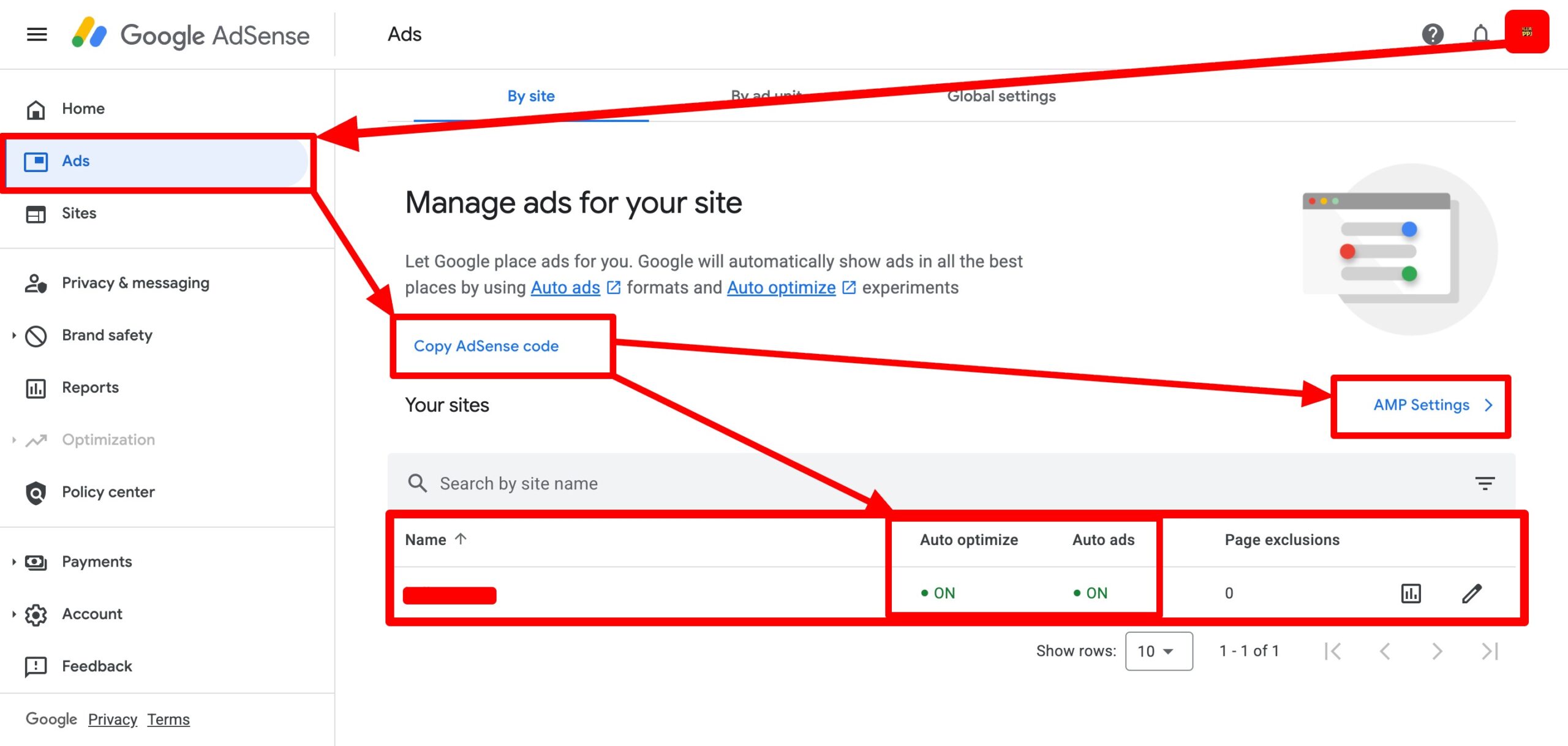
How to get and copy the code for ad units
To generate the code for ad units, you first need to create an ad unit. If you’ve already done this, you can get the AdSense code and the ad unit code by following these steps:
- Sign in to your AdSense account.
- Click Ads.
- Click By ad unit.
- In the “Existing ad units” table, find the ad unit whose code you want to get.
- Hover over the ad unit and click Get code
 .
. - Copy all of the ad unit code.
 .
.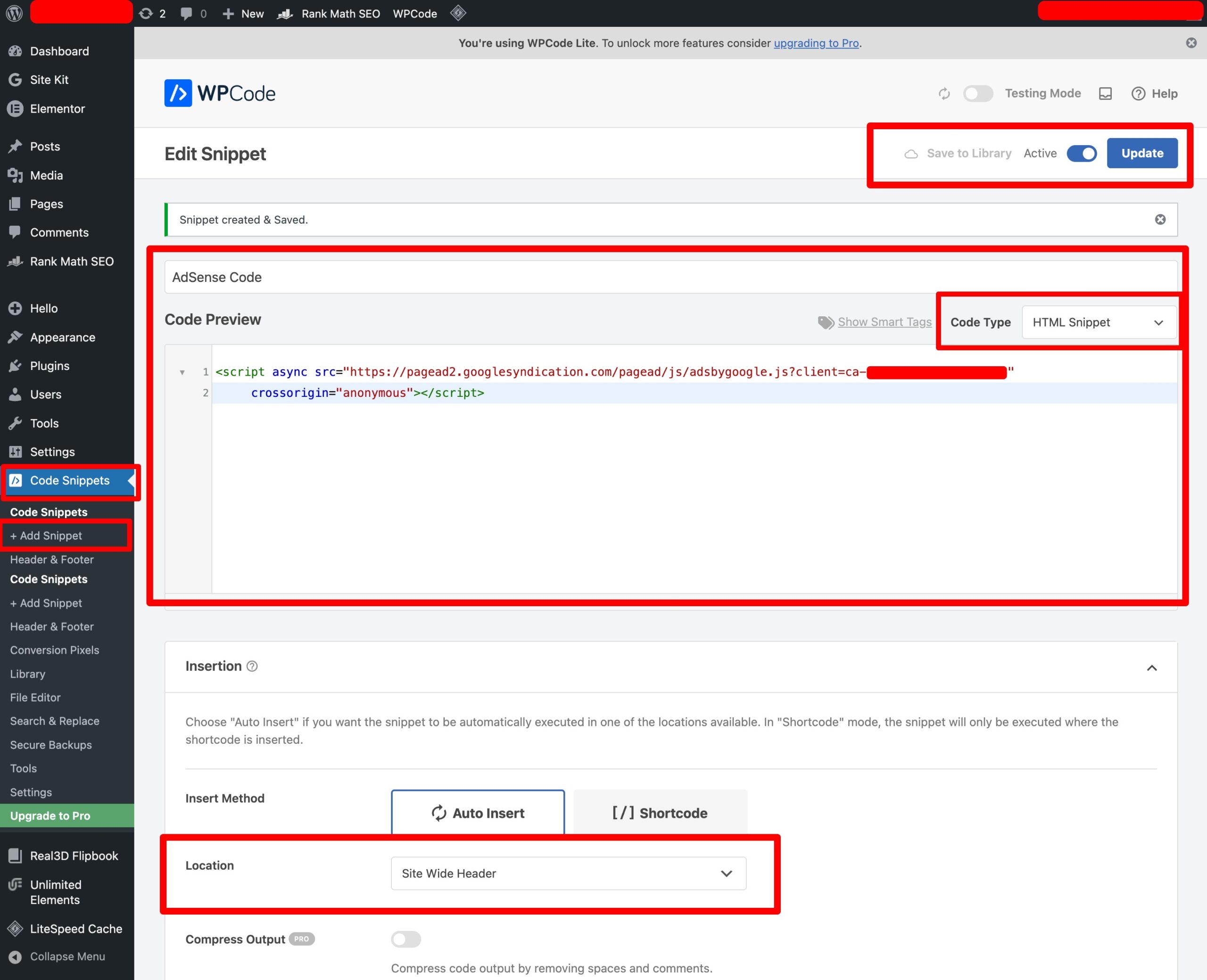
Let’s walk through the red-marked steps in the screenshot, cleanly and logically, as if you’re guiding someone inside a WordPress dashboard.
This screen is from the WPCode Lite plugin, used to add custom code (here: Google AdSense) without touching theme files.
Step 1: Open WPCode → Add Snippet
- From the left WordPress admin menu, click Code Snippets
- Then click + Add Snippet
This opens the snippet editor where you can add custom code safely.
Step 2: Name the Snippet
- At the top, you’ll see a title field
- The snippet is named “AdSense Code”
This is just for your reference so you can identify it later.
Step 3: Select Code Type
- On the right side of the editor, set Code Type to:
HTML Snippet
This is important because AdSense uses<script>tags, not PHP.
Step 4: Paste the AdSense Script
- In the Code Preview editor area, paste your Google AdSense code
- Example shown is the official AdSense async script (publisher ID hidden in red)
This tells WordPress what code you want to load.
Step 5: Choose Insert Method
- Scroll down to the Insertion section
- Select Auto Insert
Auto Insert means WordPress will place the code automatically without needing shortcodes.
Step 6: Set the Location
- Under Location, choose:
Site Wide Header
This inserts the AdSense script inside the <head> section of every page, which is exactly what Google recommends for AdSense.
Step 7: Activate the Snippet
- In the top-right corner, toggle the switch to Active
Inactive snippets do nothing, even if the code is correct.
Step 8: Click Update
- Finally, click the Update button
This saves the snippet and makes it live on your website.
Result
Your AdSense script is now:
- Safely added (no theme file editing)
- Loaded site-wide
- Placed in the correct header location
- Easy to disable or edit anytime
This method is clean, reversible, and production-safe—exactly how WordPress code injections should be done.