





How to Fix Embed Issues on Mobile in Wix: A Step-by-Step Guide
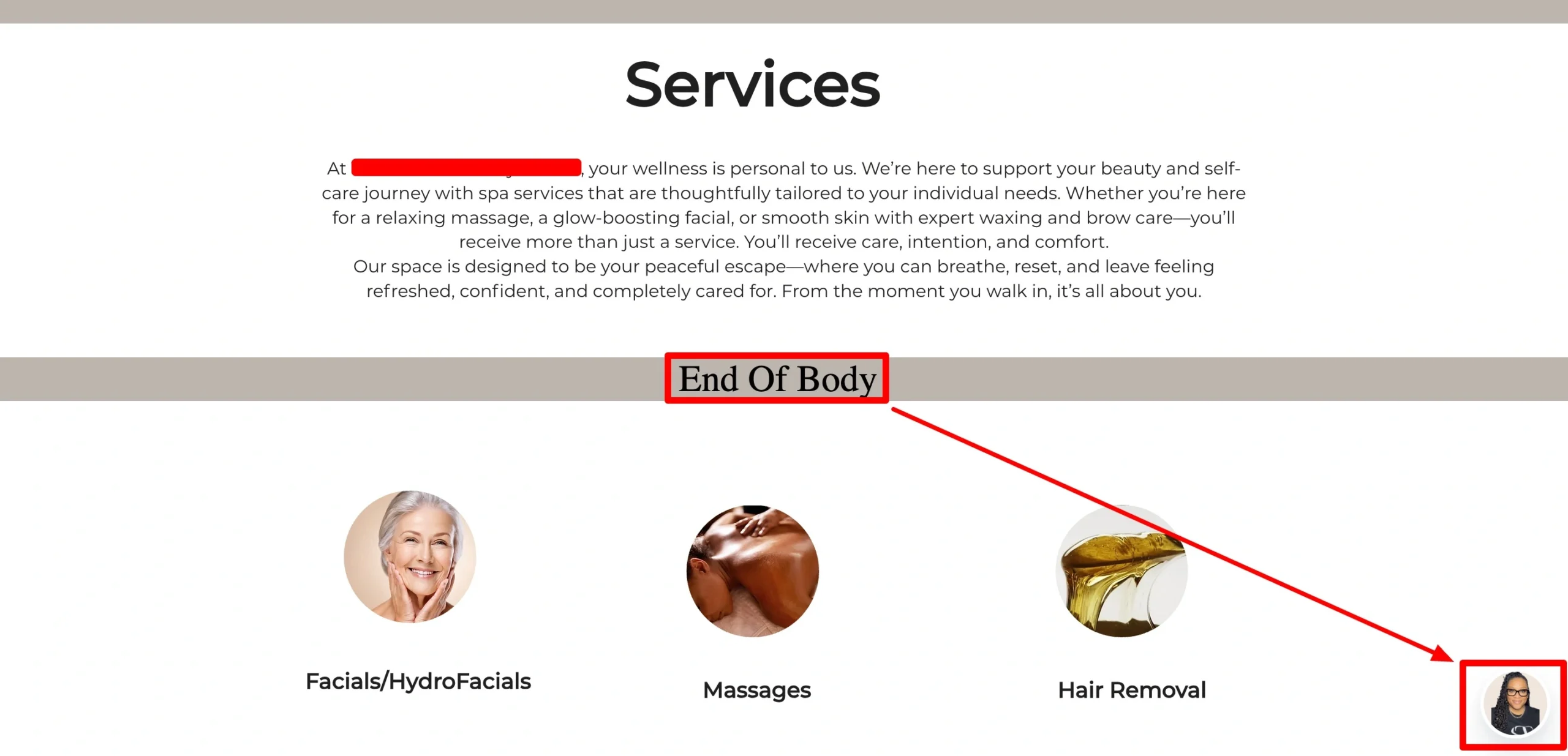
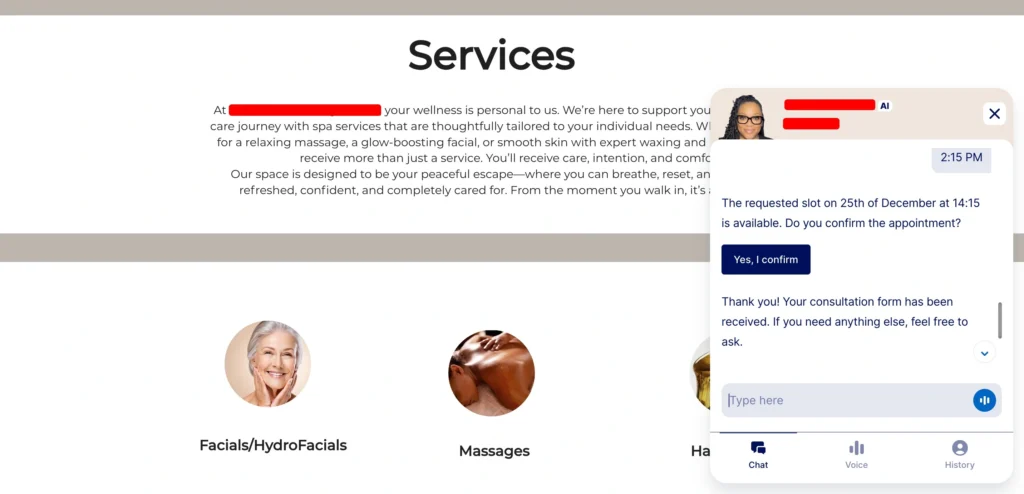
Embedding third-party tools in Wix—like chat widgets, booking systems, forms, or analytics—works great on desktop… until mobile breaks everything.
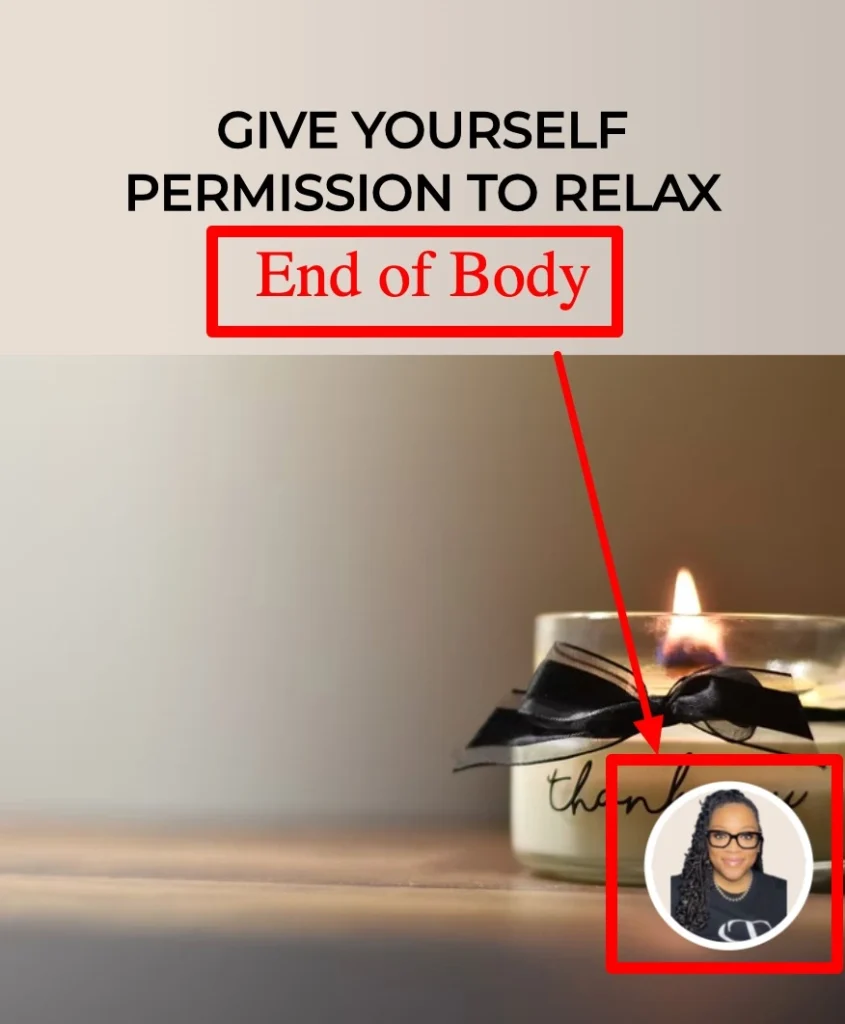
Buttons float in the wrong place. Widgets disappear. Popups block the screen. If this sounds familiar, you’re not alone. Wix handles mobile rendering differently, and embedded scripts don’t always behave nicely.
Let’s fix that—properly, step by step.
Why Embed Issues Happen on Mobile in Wix
Wix uses a dynamic rendering system and applies different layouts for desktop and mobile. Most third-party embeds (Jotform, chatbots, CRMs, widgets) are not built specifically for Wix’s DOM structure.
Common causes:
- Wix moves elements after page load
- Mobile breakpoints override CSS
- Inline styles injected by embed scripts
- Positioning conflicts (
absolutevsfixed) - Delayed script loading
The solution is controlled CSS + smart JavaScript timing.
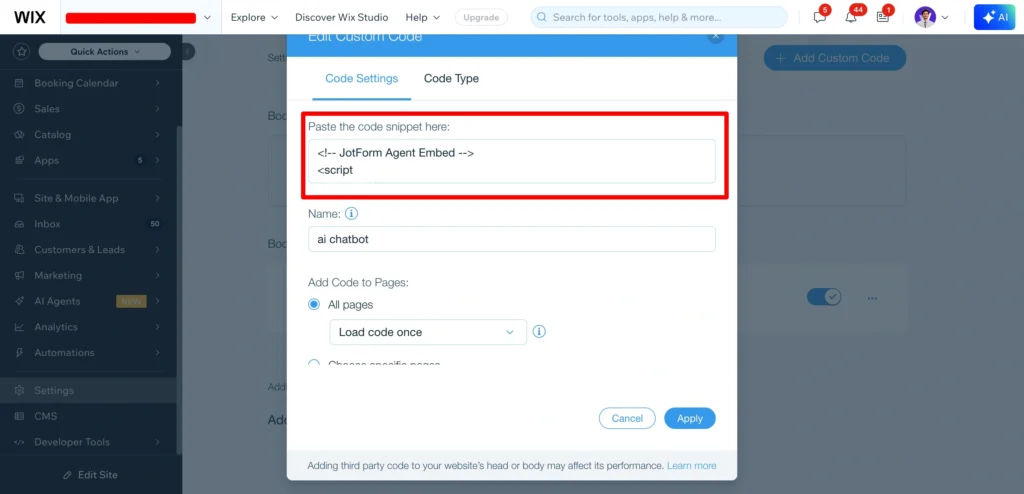
Step 1: Always Use Wix “Custom Code” (Not HTML Elements)
Never paste embed scripts into:
- Wix text boxes
- Embed HTML elements on pages
Instead, go to:
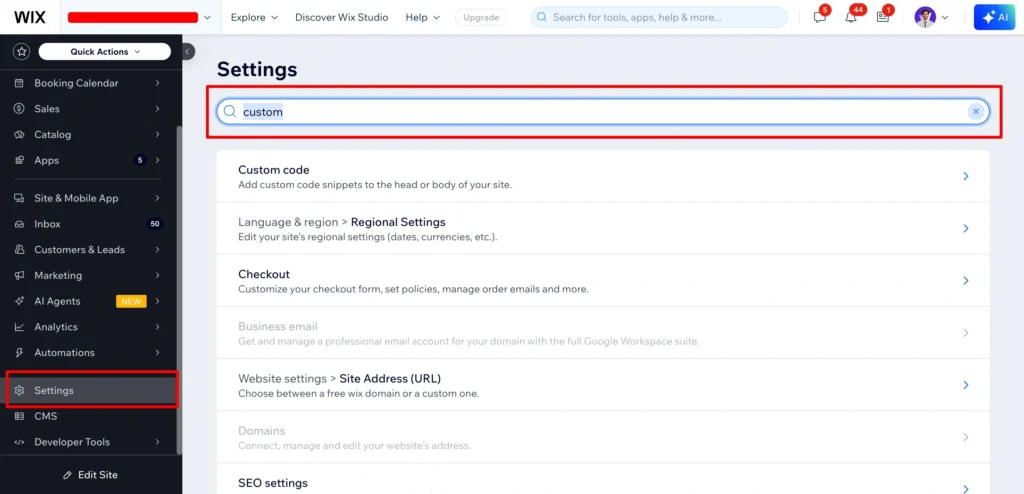
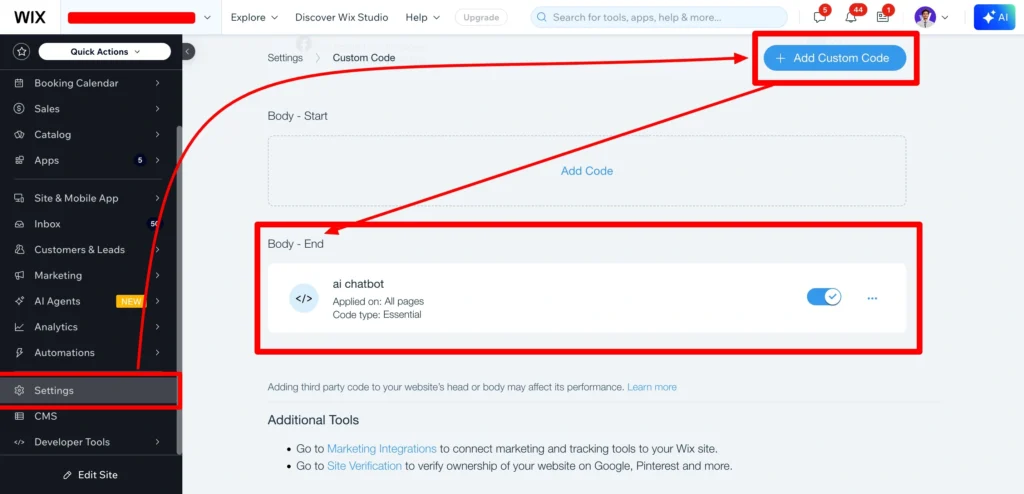
Wix Dashboard → Settings → Advanced → Custom Code
Why?
- Custom Code loads consistently
- Works across all pages
- Better mobile stability
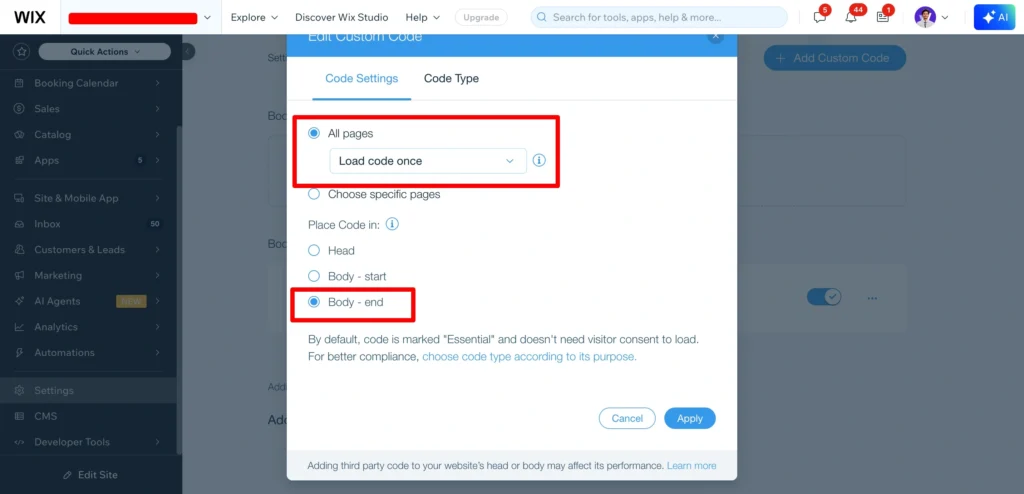
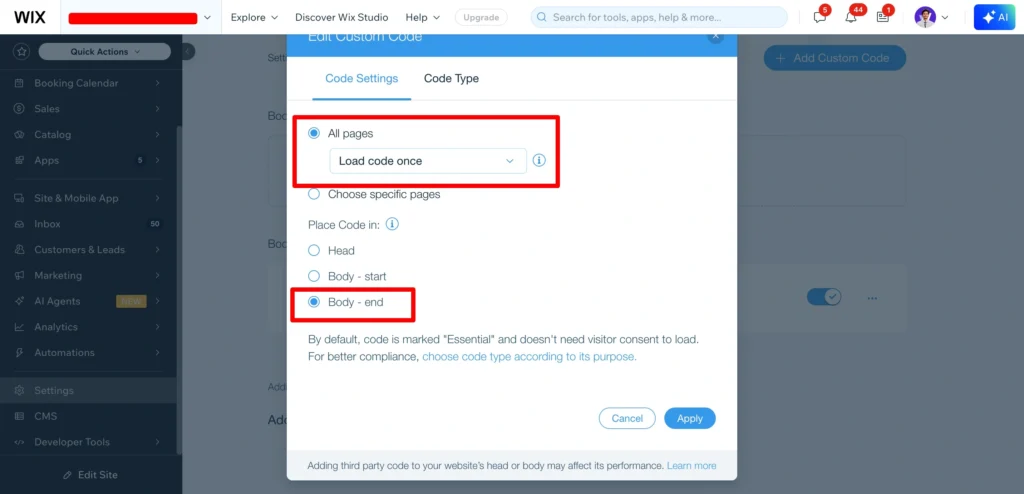
Choose:
- Add to All Pages
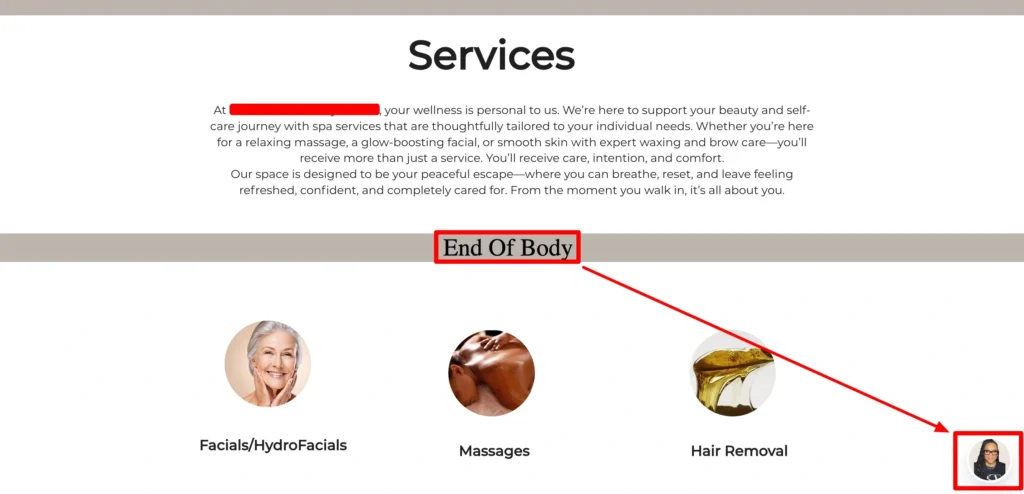
- Load at Body End (best for widgets)
Step 2: Force Mobile-Safe Positioning with CSS
Most embed issues on mobile come from positioning conflicts.
Add this CSS inside the same Custom Code snippet:
<style>
.embed-container,
.ai-agent-chat-animation-container {
    position: fixed !important;
    right: 15px !important;
    bottom: 15px !important;
    left: auto !important;
    top: auto !important;
    z-index: 999999 !important;
}

/* Mobile adjustment */
@media (max-width: 768px) {
    .embed-container,
    .ai-agent-chat-animation-container {
        right: 10px !important;
        bottom: 10px !important;
    }
}
</style>
This ensures:
- Widget stays bottom-right
- No overlap with Wix UI
- Mobile spacing looks clean
Step 3: Fix Wix DOM Movement with JavaScript
Wix sometimes repositions elements after page load, especially on mobile. That’s why embeds “jump” or disappear.
Use this JavaScript to lock the position:
<script>
function fixEmbedPosition() {
    const widget = document.querySelector('.ai-agent-chat-animation-container');
    if(widget){
        widget.style.position = 'fixed';
        widget.style.right = window.innerWidth <= 768 ? '10px' : '15px';
        widget.style.bottom = window.innerWidth <= 768 ? '10px' : '15px';
        widget.style.left = 'auto';
        widget.style.top = 'auto';
        widget.style.zIndex = '999999';
    }
}

document.addEventListener('DOMContentLoaded', () => {
    fixEmbedPosition();

    const observer = new MutationObserver(() => fixEmbedPosition());
    observer.observe(document.body, { childList: true, subtree: true });

    setTimeout(() => observer.disconnect(), 10000);
});
</script>
This:
- Runs fast on mobile
- Detects Wix layout changes
- Prevents widget displacement
- Stops automatically to save performance
Step 4: Remove Mobile Overlays & Background Issues
Some embeds add overlays that block scrolling on mobile.
Fix it with:
.ai-agent-chat-animation-container::before {
    background: transparent !important;
}
This improves:
- Mobile UX
- Scroll behavior
- Tap accuracy
Step 5: Test Properly (Most People Don’t)
After publishing:
- Clear Wix cache
- Test in:
- Chrome mobile
- Safari mobile
- Real device (not only Wix preview)
- Rotate screen (portrait + landscape)
- Test slow network (3G simulation)
If it works there, it’ll work everywhere.
Best Practices for Mobile Embeds in Wix
- Avoid multiple floating widgets
- Load embeds only when needed
- Use
fixed, notabsolute - Keep z-index high but controlled
- Prefer MutationObserver over intervals
- Never rely on Wix mobile editor for embeds
Final Thoughts
Wix is powerful—but mobile embeds need extra care. Once you control CSS priority, script timing, and DOM behavior, embed issues disappear.
This method works for:
- Chat widgets (Jotform, Tidio, Crisp)
- Booking systems
- Floating CTAs
- Analytics tools
- Custom scripts
Clean, stable, mobile-friendly.
The web is weird. Wix is weirder. But now you’re in control.
Hire the Best Web Design for fix your wix website bugs.
Contact with us for professional & premium support – Book Now