
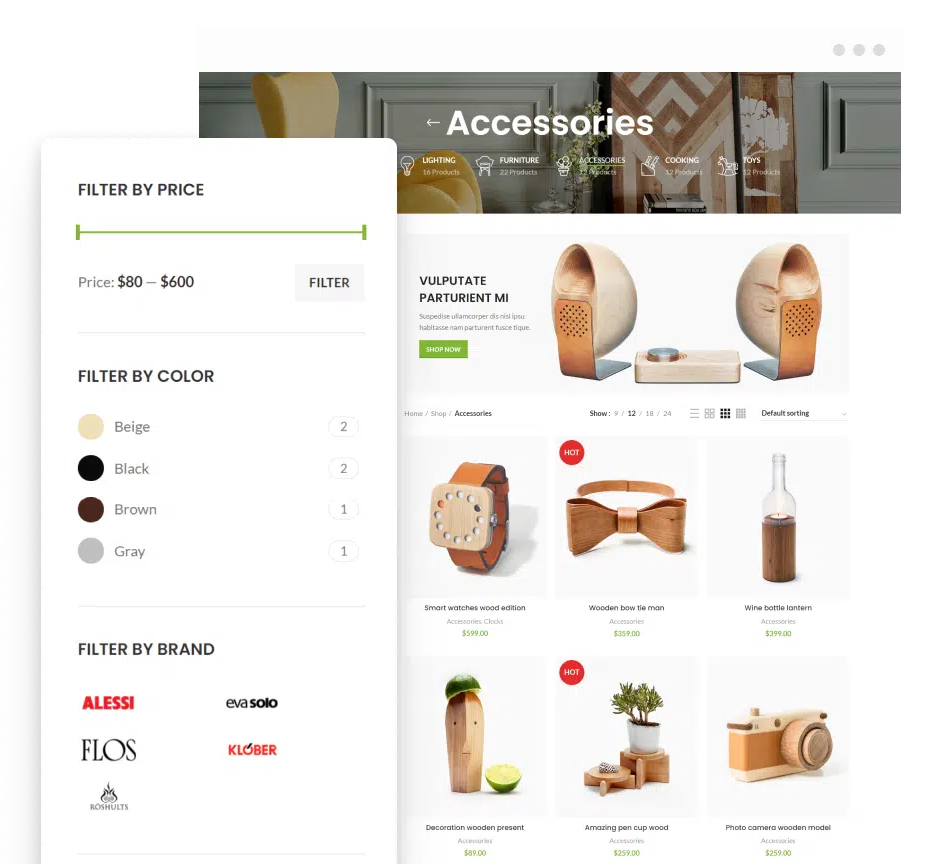





WoodMart Filter Not Working with ACF Custom Taxonomy? Here’s the Real Fix
WoodMart filter not working with ACF custom taxonomy is one of the most frustrating issues WooCommerce developers face when building advanced product filtering systems. You’ve created a custom taxonomy using Advanced Custom Fields (ACF), assigned it to products, and everything looks structurally correct — yet the WoodMart AJAX filter either ignores it, shows empty results, or simply refuses to respond. Meanwhile, default WooCommerce attributes filter perfectly. Confusing? Yes. Random? Not at all.
This issue usually happens because WoodMart’s filtering system is optimized for native WooCommerce taxonomies and product attributes. When ACF registers a custom taxonomy, it doesn’t always integrate seamlessly with WooCommerce’s internal tax_query logic or AJAX filtering mechanism. The result is a structural mismatch between how your data is stored and how the theme expects to retrieve it.
The good news? This is not a theme bug — it’s a configuration and query alignment issue. Once you understand how WooCommerce processes taxonomy queries and how WoodMart builds layered navigation, the fix becomes straightforward and scalable. In this guide, we’ll break down exactly why it happens and show you multiple proven methods to solve it properly.
If you’re using:
- WoodMart theme
- WooCommerce
- Advanced Custom Fields (ACF)
- Custom taxonomies
- AJAX product filtering
And your filter either:
- Shows no results
- Doesn’t appear
- Doesn’t filter correctly
- Works for default attributes but not custom ones
Then you’re dealing with query compatibility issues.
Let’s understand why.
Why WoodMart Filter Doesn’t Detect ACF Custom Taxonomy
WoodMart’s native filters are optimized for:
- WooCommerce Product Attributes
- Default product taxonomies
- Standard meta queries
But ACF custom taxonomies often:
- Are not registered properly for products
- Are not added to WooCommerce query vars
- Are not indexed in layered nav
- Are stored as meta instead of taxonomy
So WoodMart’s AJAX filter simply ignores them.
The filter system relies on WP_Query and WooCommerce tax_query structure.
If your taxonomy isn’t part of that query, it won’t filter.
Now let’s fix it.
Method 1: Properly Register the ACF Custom Taxonomy (Core Fix)
Most issues start here.
If you created the taxonomy using ACF UI or code, ensure:
register_taxonomy(
    'custom_brand',
    'product',
    array(
        'label' => 'Custom Brand',
        'hierarchical' => true,
        'public' => true,
        'show_ui' => true,
        'show_in_rest' => true,
        'query_var' => true,
        'rewrite' => array('slug' => 'custom-brand'),
    )
);
Important settings:
public => truequery_var => true- Must be attached to
'product'
If it’s not attached to products, WooCommerce won’t recognize it.
After registering:
- Flush permalinks
- Re-save products
- Clear cache
Now test filtering.
If still broken, move to Method 2.
Method 2: Convert ACF Field to WooCommerce Attribute (Recommended for Stability)
WoodMart filters work best with WooCommerce Product Attributes.
Instead of using a pure ACF taxonomy:
- Go to Products → Attributes
- Create new attribute (e.g., Brand)
- Configure terms
- Assign to products
Now WoodMart layered nav works instantly.
Why?
WooCommerce attributes are internally optimized for:
- Tax queries
- Layered navigation
- AJAX filtering
- Indexing
If performance and stability matter, this is the cleanest approach.
But what if you must keep ACF taxonomy?
Then Method 3.
Method 3: Use Filter Everything Plugin (Most Powerful & Flexible Fix)
If you want full control, this is the professional solution.
Plugin:
Filter Everything – WordPress & WooCommerce Product Filter
This plugin supports:
- Custom taxonomies
- ACF fields
- Meta queries
- AJAX filtering
- SEO-friendly URLs
Step-by-Step Setup
Step 1: Install Plugin
Install:
Filter Everything → Activate
Step 2: Create New Filter Set
Go to:
Filter Everything → Filters → Add New
Choose:
Post Type: Products
Step 3: Add Your ACF Taxonomy
Add filter:
Filter by → Taxonomy
Select:
Your custom taxonomy
Set display:
- Checkbox
- Dropdown
- Radio
Step 4: Enable AJAX
Enable:
AJAX filtering
Now filters work without page reload.
Step 5: Add Filter Widget
Go to:
Appearance → Widgets
Add:
Filter Everything Widget
Place in:
Shop Sidebar
Done.
Now your ACF taxonomy filters correctly.
Why this works:
Filter Everything builds a proper tax_query and meta_query dynamically and overrides default WooCommerce layered nav limitations.
It also supports SEO URLs like:
/shop/?filter_custom_brand=nike
This improves indexability.
Method 4: Custom Query Hook for WoodMart AJAX (Advanced Developer Fix)
If you want to keep WoodMart native filter and avoid extra plugins:
Hook into WooCommerce query.
Add this to functions.php:
add_action('woocommerce_product_query', 'add_custom_taxonomy_filter');

function add_custom_taxonomy_filter($q) {
    if (!is_admin() && is_shop()) {

        if (isset($_GET['custom_brand'])) {

            $tax_query = (array) $q->get('tax_query');

            $tax_query[] = array(
                'taxonomy' => 'custom_brand',
                'field' => 'slug',
                'terms' => sanitize_text_field($_GET['custom_brand']),
            );

            $q->set('tax_query', $tax_query);
        }
    }
}
Now WoodMart AJAX reads the parameter and filters correctly.
This method requires:
- Proper URL parameters
- Debugging via Query Monitor
- Clean caching setup
Not beginner-friendly—but powerful.
Common Reasons WoodMart Filter Breaks
Let’s quickly audit typical causes:
- Taxonomy not assigned to products
- ACF field saved as meta instead of taxonomy
- AJAX caching conflict
- Object cache conflict
- CDN cache not purged
- Query var disabled
- SEO plugin interfering with URL params
Always test with:
- Cache disabled
- Default theme activated
- Only WooCommerce + WoodMart active
This isolates the issue.
SEO Impact of Fixing Filter System
This is important.
When filters work properly:
- Users find products faster
- Bounce rate drops
- Engagement increases
- Crawlable filter URLs can rank
But be careful.
Indexing every filter combination can create:
Duplicate content problems.
Best practice:
- Allow index for main filter categories
- Noindex deep filter combinations
Use SEO plugin settings to control this.
Performance Optimization Tips
Filtering increases database queries.
To optimize:
- Use object caching (Redis)
- Use proper indexing
- Avoid too many filter combinations
- Optimize MySQL tables
- Enable product lookup tables (WooCommerce setting)
WoodMart performs well—but large catalogs need optimization.
Debugging Checklist (Use This Before Panic)
- Inspect URL parameters
- Check taxonomy exists via:
get_taxonomies() - Confirm products have terms assigned
- Run WP_Query test manually
- Use Query Monitor plugin
- Check console for AJAX errors
Most failures are structural—not theme bugs.
Which Method Should You Choose?
If you’re building:
Small store → Convert to WooCommerce attribute
Mid-size store → Filter Everything plugin
Large store with custom logic → Custom query hook
Basic issue → Fix taxonomy registration
Choose based on project complexity.
Real-World Example
Let’s say you’re building:
Custom sneaker store.
You created:
custom_brand taxonomy via ACF.
WoodMart filter doesn’t detect it.
Fix:
Either convert to product attribute “Brand”
OR
Use Filter Everything and enable AJAX.
Problem solved.
Final Thoughts
WoodMart filter not working with ACF custom taxonomy is not a mystery.
It’s a query alignment issue.
Now you understand:
- Why it happens
- How WooCommerce handles tax queries
- How WoodMart layered nav works
- 4 professional ways to fix it
- Which method fits which scenario
- How to avoid SEO and performance problems
Most developers patch blindly.
Professionals align the data structure with the query system.
When taxonomy, query, and filter system speak the same language—everything works.
And once it works properly?
Your store becomes faster, smarter, and more profitable.
Filtering isn’t just UI.
It’s revenue architecture.