




WordPress White Screen Error Fix
Imagine logging into your WordPress site, only to be greeted by… nothing. No dashboard, no homepage, just a blank white screen. This dreaded issue is so common it has earned the name WordPress White Screen of Death (WSOD).
For beginners, the problem feels catastrophic. For developers, it’s a frustrating puzzle. The good news? The white screen rarely means your site is gone for good. Instead, it usually points to a solvable problem such as a faulty plugin, broken theme, or server resource limit.
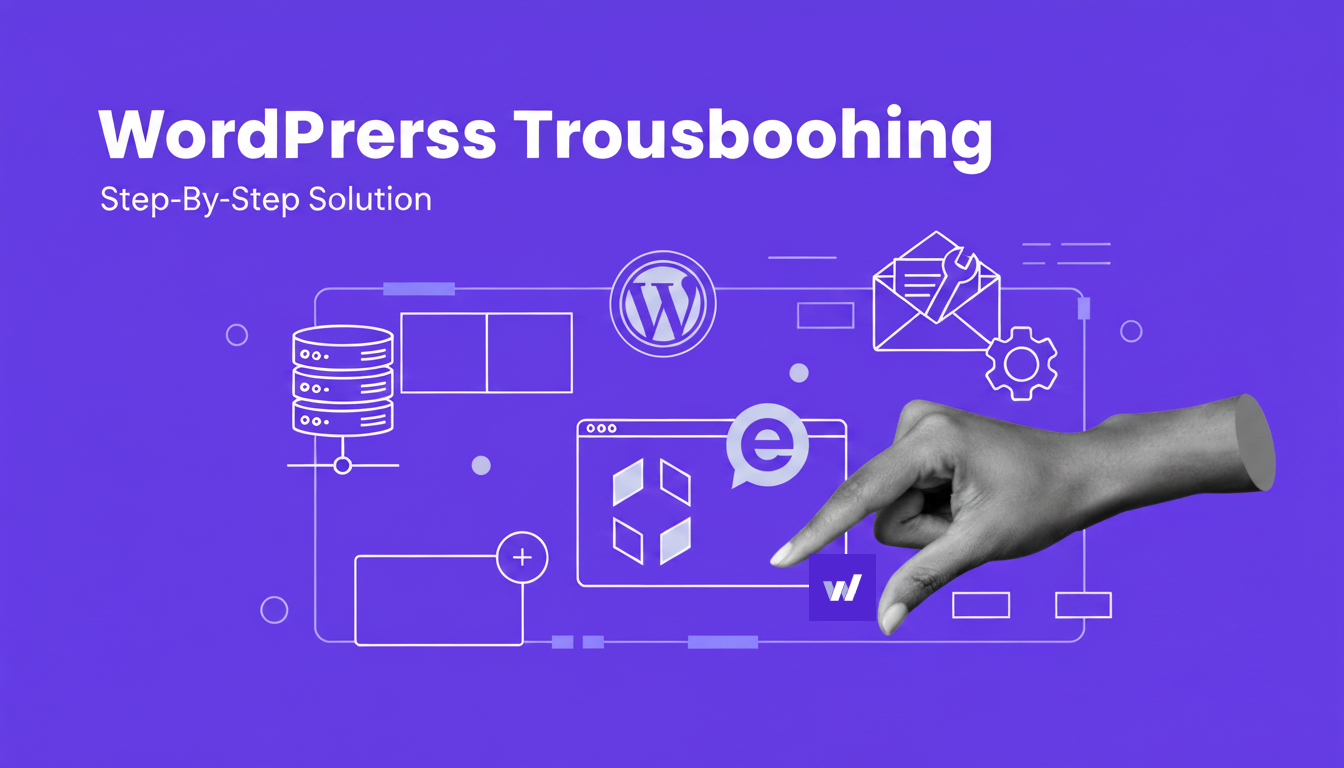
In this guide, we’ll walk through step-by-step solutions to fix the WordPress White Screen of Death, plus advanced tips to prevent it from happening again. By the end, you’ll know exactly how to troubleshoot and bring your site back online.
Causes of the WordPress White Screen of Death
The WSOD is essentially WordPress crashing silently. Unlike other errors, it often doesn’t display an error message. Instead, you just see a white page. Common causes include:
- Plugin conflicts – A plugin update or bug causes a fatal error.
- Theme conflicts – Your theme’s code, especially functions.php, can break.
- PHP memory exhausted – Not enough server resources allocated to WordPress.
- Corrupted WordPress core files – A failed update or hacked file breaks loading.
- Caching issues – Browser or plugin cache serving a blank version of your site.
- Server-level misconfigurations – Outdated PHP versions, bad .htaccess rules.
👉 Related: WordPress Critical Error Solution
Fixes
1. Disable Plugins (Most Common Fix)
Plugins are the number one culprit behind WSOD.
Steps:
- Access your hosting control panel or connect via FTP.
- Navigate to /wp-content/.
- Rename the plugins folder to plugins_backup.
- Reload your site.
- If it works, a plugin was responsible.
- Rename the folder back to plugins.
- Log in to WordPress and deactivate plugins one by one until you find the faulty one.
👉 Related: WordPress Plugin Conflict Troubleshooting
2. Switch to a Default Theme
If plugins aren’t the issue, the theme may be the cause.
Steps:
- Go to /wp-content/themes/.
- Rename your active theme’s folder (e.g., mytheme → mytheme_old).
- WordPress will automatically fall back to a default theme such as Twenty Twenty-Four.
- Refresh your site.
- If the site loads, your theme caused the error.
👉 Related: WordPress Theme Broken After Update
3. Increase PHP Memory Limit
If your site has grown in traffic, plugins, or content, your server may not have enough memory.
Steps:
- Open wp-config.php.
- Add this line before “That’s all, stop editing!”:
define(‘WP_MEMORY_LIMIT’, ‘256M’);
- Save the file and refresh your site.
👉 Related: WordPress Memory Exhausted Error Fix
4. Enable Debug Mode to Reveal Errors
The white screen hides the actual error. Debugging shows you what’s wrong.
Steps:
- Open wp-config.php.
- Add or modify these lines:
define(‘WP_DEBUG’, true);
define(‘WP_DEBUG_LOG’, true);
define(‘WP_DEBUG_DISPLAY’, false);
- Save and reload your site.
- Open /wp-content/debug.log to see the actual error.
👉 Related: WordPress Debug Mode Errors
5. Clear Cache (Browser, WordPress, and Server)
Sometimes the white screen is a cached version of your site.
Steps:
- Clear browser cache (Ctrl + Shift + Delete).
- If using a caching plugin, clear cache inside WordPress.
- If your host uses server caching (LiteSpeed, Nginx), purge cache in hosting panel.
👉 Related: WordPress Caching Plugin Not Working
6. Re-upload Core WordPress Files
Corruption during updates can break WordPress core.
Steps:
- Download the latest version of WordPress from wordpress.org.
- Extract the ZIP file.
- Upload the wp-admin and wp-includes folders to your site via FTP or File Manager.
- Overwrite existing files.
- Refresh your site.
7. Check PHP Version Compatibility
Outdated PHP versions cause fatal errors.
Steps:
- Log into your hosting panel.
- Locate PHP settings.
- Upgrade to PHP 8.0 or newer.
- Refresh your site.
👉 Related: WordPress PHP Update Issues
Advanced Troubleshooting
- Check error logs – In cPanel, go to “Errors” to see server logs.
- Disable .htaccess rules – Rename .htaccess → generate a new one in Settings → Permalinks → Save.
- Disable object cache – If Redis or Memcached is enabled, disable temporarily.
- Test staging site – Clone your site to staging and test changes without affecting live site.
- Contact host – If nothing works, ask your hosting provider to check server-level misconfigurations.
👉 Related: WordPress Internal Server Error 500 Fix
Prevention Tips
- Always update plugins and themes on a staging site before live.
- Use lightweight themes and well-coded plugins.
- Monitor site health under Tools → Site Health in WordPress.
- Upgrade hosting if your site regularly hits memory limits.
Conclusion
The WordPress White Screen of Death looks terrifying, but it rarely signals disaster. With the right steps—starting from plugins, themes, memory limits, and debugging—you can bring your site back online quickly.
If you want to avoid WSOD in the future, use staging environments, choose reliable plugins/themes, and monitor your hosting performance.